Three sheets to send? Turn them into one PDF on your phone
A signature at the bottom of the sheet and a line on the back can decide whether a form is complete. Files on iPhone or Google Drive on Android can keep those pages together in one free PDF.
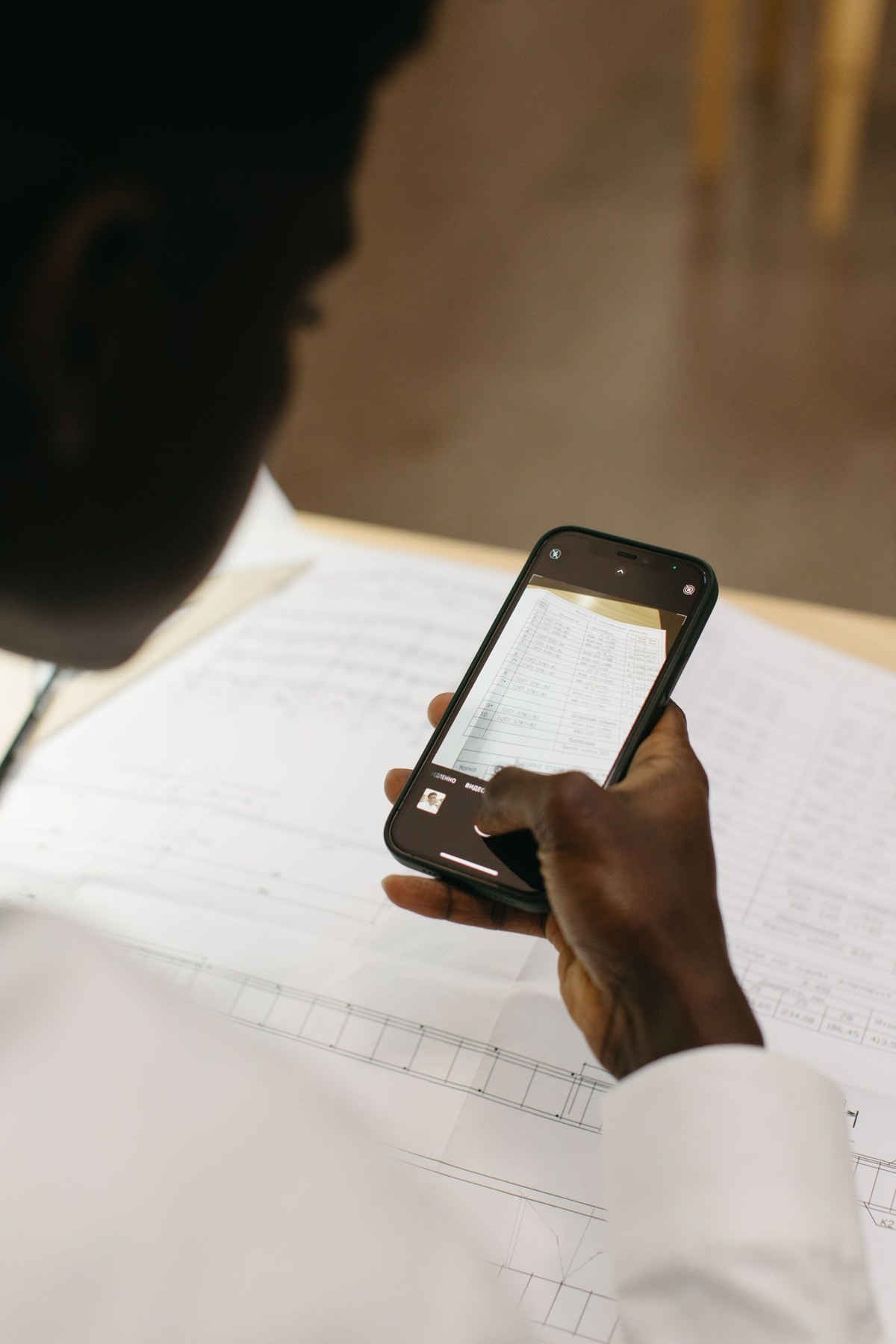
From the desk to a single attachment
A form might run to three sheets, with a signature halfway through and one last line on the back. Laid out on the desk, they make sense in that order. Send a collection of photos and the person opening them has to piece it together. Put every side that contains information into one PDF instead. Files on an iPhone and Google Drive on Android can both do it. If the application portal asks for identification or a second form separately, give that its own file. The way the documents were requested tells you how to group them.
In Files on iPhone, Scan Documents is in the three-dot menu on the Browse screen. Once the first sheet is framed, you can add the others to the same PDF. If part of the original has been cropped out, adjust the edges before you move on. Choose On My iPhone, when available, to keep the file on the device. A document you have already scanned in Notes can be shared and saved in Files. Open that copy before starting over. It may already contain every page you need.
On Android, the camera in Google Drive shows a plus sign after the first preview. Add the second sheet there before saving the PDF to a folder in your Google account. You can turn an upside-down page or reshoot a blurry one on its own. For an online application, download a copy of the PDF to the phone. A folder in Drive is a convenient place to find the document again. The portal needs the file it can accept as an attachment.
If you have ten or so sides to scan, make two piles as you go, one for sheets you have yet to photograph and one for the sheets you have done. Turn over each sheet as soon as you have scanned its front. A stamp or a note on the back can go in the same PDF even if the rest of that side is blank. Afterwards, put the papers back in order and keep them with the application number. If an office writes to say that the second page of an attachment is missing, you still have something to check.
What shows up when the file is opened
A blue stamp and a line of black type ask different things of the camera. Black and white can make ordinary printed text easier to read. Colour preserves the difference between two stamps or the faint strokes of a pen. When a lamp reflects across a signature, move the light before changing the filter. A dark surface makes the edges of white paper easier to see, especially if a stamp is so close to the edge that the automatic crop could take off part of it.
To judge whether the document is readable, start with whatever is hardest to read on paper. It might be a tiny number in a table, a handwritten date or a line beside a fold. Open the PDF and zoom in there. A thumbnail lets you see the whole page at a glance. Someone who has to transcribe a number needs to make out every digit. Then look at where the front gives way to the back. Count the sides with information on them, which can add up to more than the number of sheets.
The copy that reaches the recipient
A portal can reject a perfectly legible PDF for exceeding its upload limit. Look for that limit by the upload field and compare it with the size in the file details. If the form is printed entirely in black, a fresh scan with a closer crop and an appropriate filter may take up less space. Check the result before replacing your first copy. Keep the legible one until the portal has accepted the smaller version. Saving space is of little use if the signature fades away.
“November_application_form.pdf” makes the attachment recognisable in someone else’s inbox and in your own folder weeks later. The name of the application is usually enough. If the PDF contains personal information, keep it in a private folder. For an email attachment, look for the file in the message before you send it. If you are sending a Drive link, check who has permission to open it and share it with the intended recipient. Both methods deliver the same document, with different access arrangements.
The last difference comes after the upload. A filename beside the form may mean you’ve selected an attachment. The confirmation that comes later tells you the application has gone through. Keep it beside the PDF you actually opened and checked. If someone asks you to send it again next week, you’ll have the same copy. The signature will still be at the bottom and the back immediately after the front.
SOURCES AND FURTHER READING
Did this story touch your heart?

Share this story